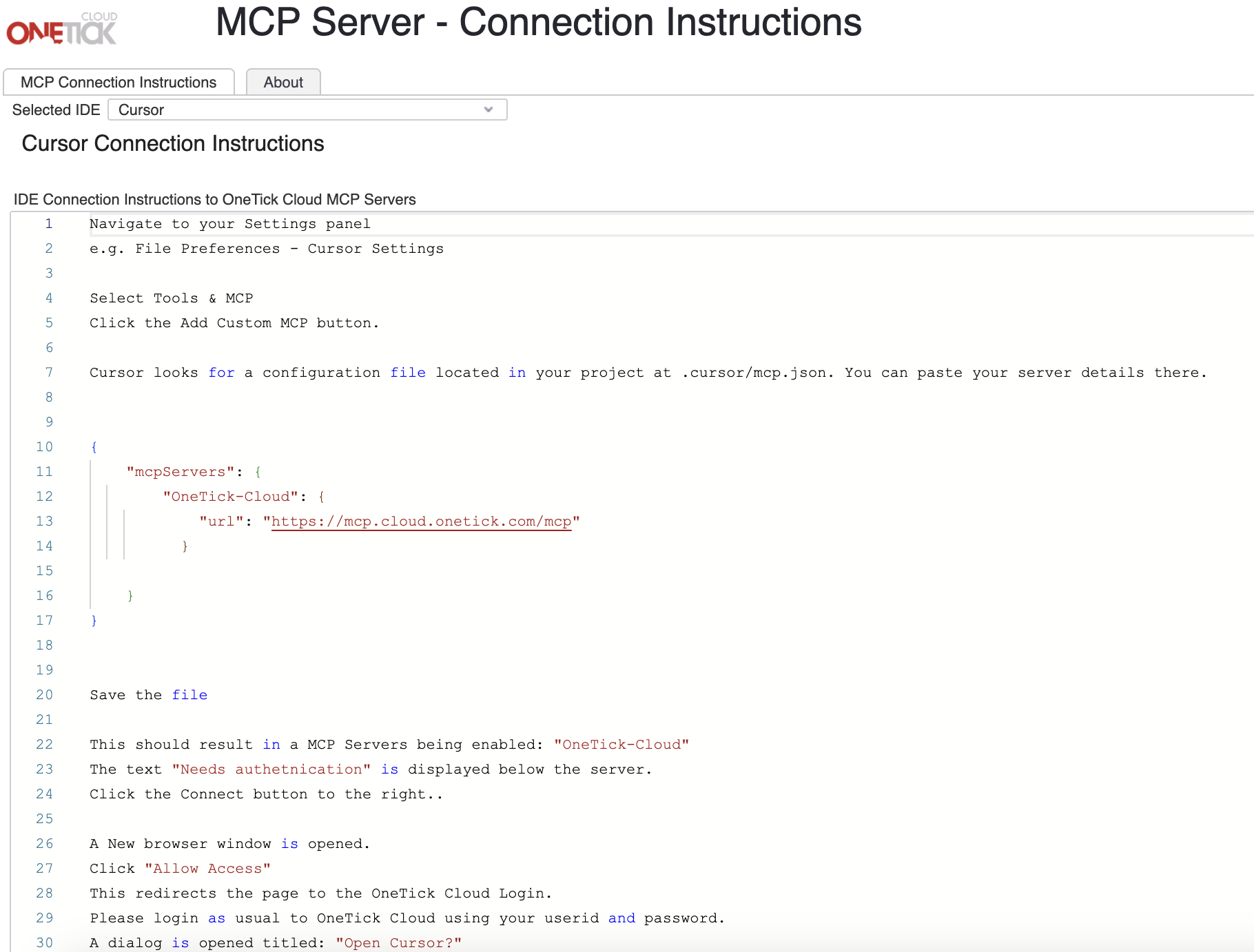
Use the following instructions to get started with Cursor for PyCharm:
-
Navigate to your Settings panel and select Tools - AI Assistant - Agents. Click the Install Button for Cursor.
-
Configure MCP Server using Cursor IDE, or manually by editing mcp.json in folder: ./cursor
{
"mcpServers": {
"OneTick-Cloud": {
"url": "https://mcp-python.cloud.onetick.com/mcp",
}
}
}
-
Restart PyCharm after installation.
-
Click on the Chat Icon, select Cursor, and ensure Mode is set to Agent.
< Back to MCP Main Page