-
Install Codex in VS Code by opening the Extensions Marketplace, searching for "Codex - OpenAI", and clicking Install.
-
After installation click on the Codex icon and start a new chat session
-
Click the gear icon, and select Codex Settings
-
Select MCP servers → Add server.
-
Add Details
a) Name: OneTick-Cloud
b) Type: Streamable HTTP
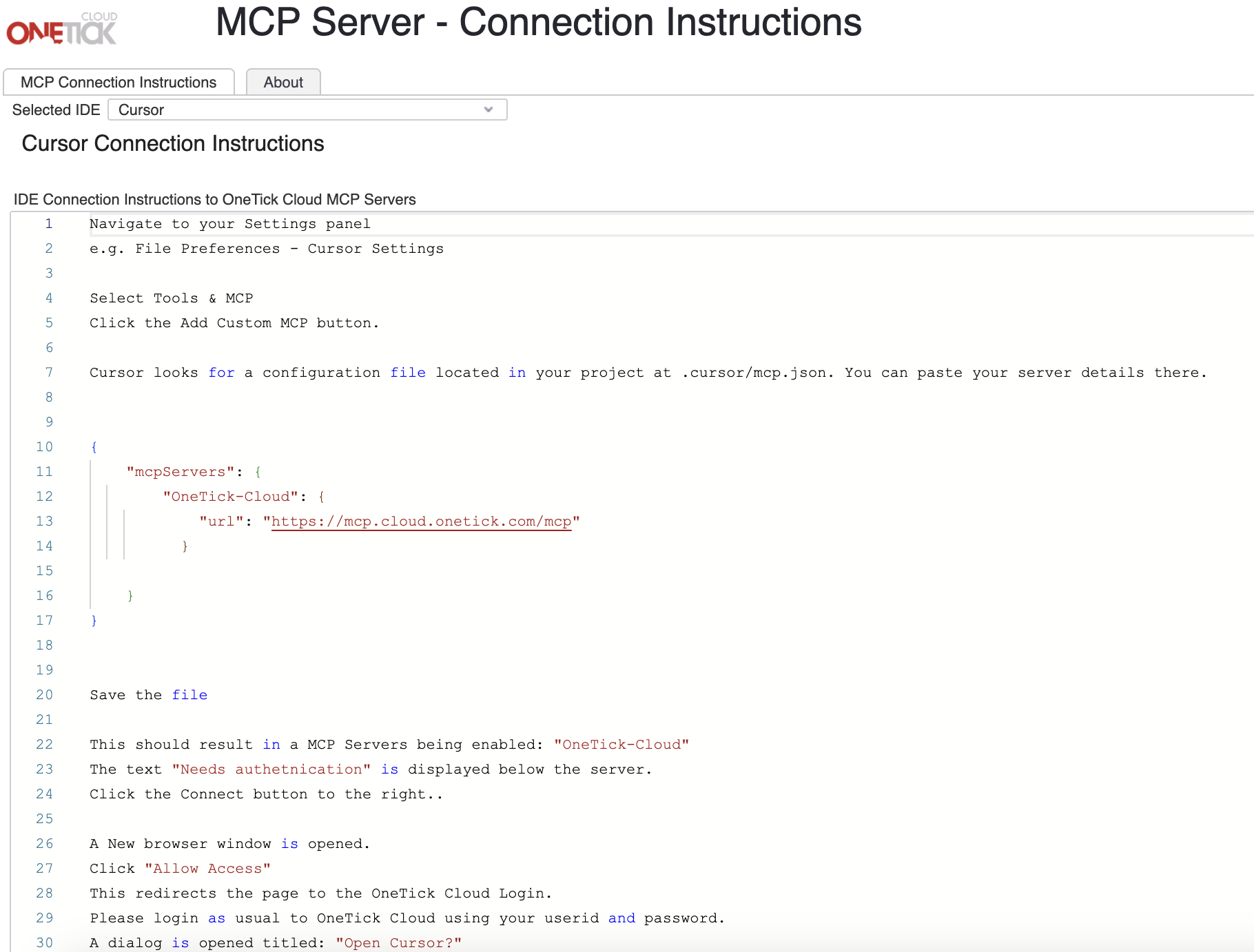
c) URL: https://mcp.cloud.onetick.com/mcp
-
Save, then restart the extension.